


How can you tell if your contact form is working?
Only by testing it, and then testing it again later. A form that worked on launch day can stop delivering months on, and it won’t tell you. Visitors fill it in and see the thank you message as normal. The email just never turns up, or turns up with something wrong in it.
The first check takes a couple of minutes. Fill in your own form on your phone, using a personal email address, and see what arrives. Nothing in the inbox, or a message sitting in spam, means you’ve found a problem. If it arrives looking right, that rules out the obvious failure. There are quieter ones too.
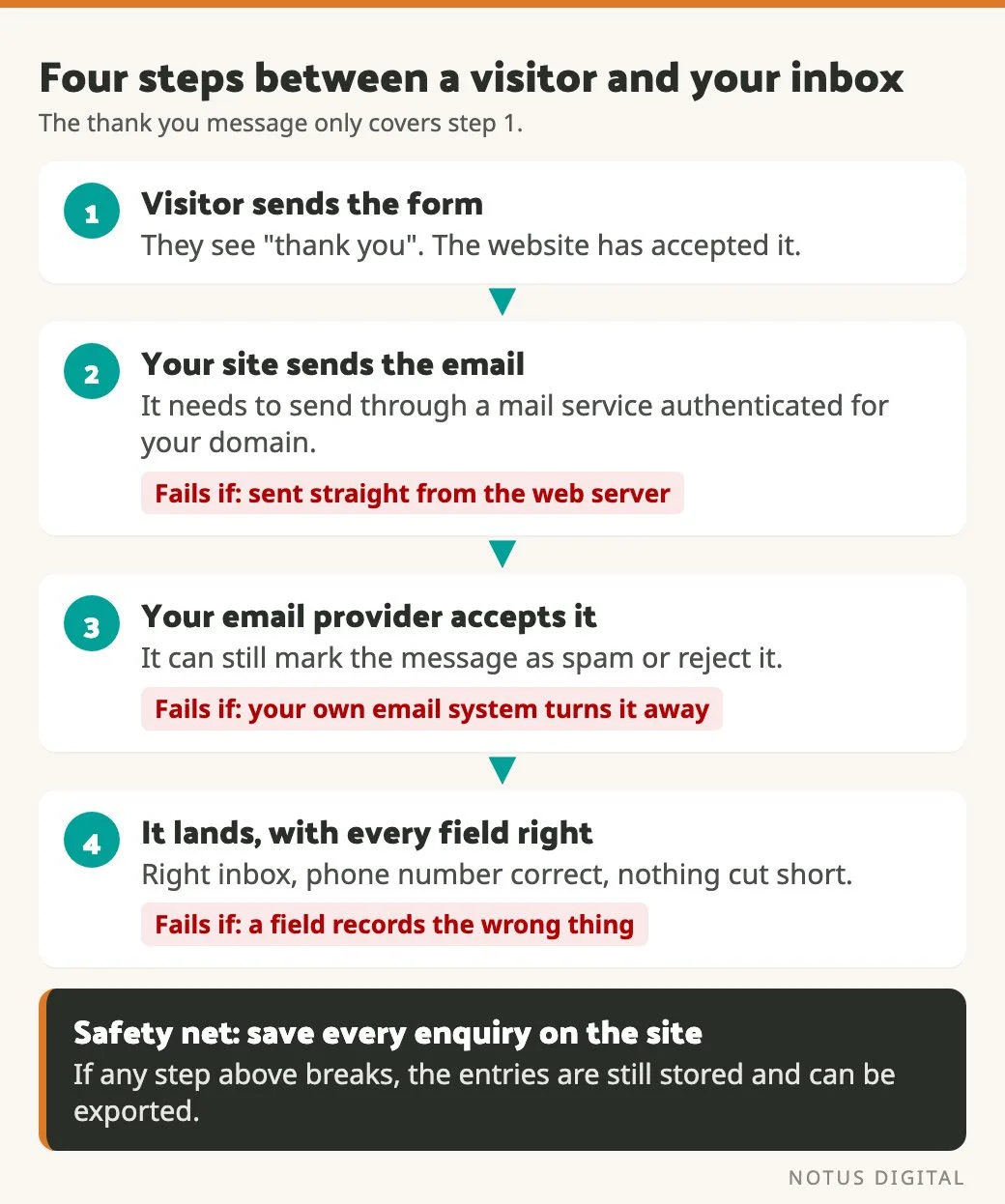
Why a contact form stops working without anyone noticing
A contact form has no warning light. Nobody sees an error message. The person who tried to reach you probably assumes you’re slow to reply, and nothing on the website tells you otherwise.
Whether anyone spots it depends a lot on who is looking. On sites where we have a maintenance agreement, checking that the forms still deliver is part of the monthly work. Without one, nobody is paid to look regularly, and the owner is busy running the business. The first sign is often a message along the lines of “we haven’t had any enquiries for a while”. By then the form could have been broken for a month or more.
What we’ve actually found breaking forms
These are the causes we’ve come across in real client work.
Email that isn’t set up to send properly. Out of the box, WordPress sends email straight from the web server. Plenty of email providers don’t trust that, because nothing proves the message really comes from your domain. So the form does its job and the site sends the email, but it gets rejected or filtered on the way. The fix is SMTP, which means sending through a proper mail service that’s authenticated for your domain. We’ve found forms failing because SMTP wasn’t set up correctly.
Your own email system turning enquiries away. Sometimes the website sends the message perfectly well and the business’s email provider blocks it, either marking it as spam or rejecting it outright. From the website’s side everything looks fine. Sorting this one out means a conversation with whoever looks after your email, often your IT provider.
A field that records the wrong thing. This is the sneaky one, because the form works. Entries arrive. The data inside them just isn’t quite right. We’ve had one of these.
The phone field set up for American numbers
On one client site, a form’s phone field was formatted for US numbers. A US phone number has ten digits. Most UK numbers have eleven, counting the leading zero. Enquiries kept arriving, but the phone numbers in them weren’t right.
It ran for a little over a week before anyone noticed, and seven enquiries were affected. The phone numbers in those seven couldn’t be recovered. Every entry still had the person’s email address, though, so that got used instead.
The fix was to take the forced formatting off the field, so it behaves like an ordinary phone field. Fields like this are easy to miss at build time, especially when time is tight and testing gets squeezed.
If your form asks for a phone number, it’s worth a few minutes:
- Type in a UK mobile and a UK landline, with spaces and without. Both should go through and arrive exactly as typed.
- Try one with +44 at the front, because some people fill it in that way.
- If your form plug-in has a phone format setting, check which option is chosen. Some offer a US-style format built around ten digits.
- Keep validation as loose as you can live with. A field that turns away a real number can lose you the enquiry.
How to check your own contact form
You don’t need a developer for this part.
- Fill in the form on your phone and again on a computer. Use a personal email address rather than one on your business domain, so the test looks like a real customer.
- Check the email arrives, and how long it takes. Look in spam and junk as well as your inbox.
- Open the email and read every field. Is the phone number right? Is the message complete, or has anything been cut short?
- Check where the form sends to. If it goes to an old address nobody reads any more, the form can work perfectly and still lose you work.
- Hit reply on the test email. The reply should go to the person who filled in the form, not to the address your website sends from.
- Compare this month’s enquiries with the same month last year. A sudden drop with no obvious reason is worth a closer look. If you track form submissions in Google Analytics, our GA4 basics guide shows where to find them. Bear in mind Analytics usually misses people who say no to cookies, so treat its count as a rough guide.
Once you know the form is delivering, getting more people to fill it in is a separate job. Our post on form optimisation covers that side.
Why every enquiry should be saved on the site
Email is the fragile part. On every site we build, the form saves each enquiry in the website’s database as well as sending the email. If the email side breaks, the enquiries are still sitting there. They can be exported and handed over, so nothing goes missing while we find the cause.
Some popular form plug-ins don’t store entries by default, and only send the email. If yours is one of them, ask your developer whether it can be changed.
Stored enquiries are personal data, so they shouldn’t sit there forever. Retention can be set with GDPR in mind. As an example, a site could keep enquiries for 90 days and delete them automatically after that. The right period depends on your business, and it’s easiest to agree it when the site is built.
What we do on the sites we look after
Our main check is simple. Are enquiries still arriving each month? If they are, that’s good evidence the form is doing its job. It isn’t proof on its own. In the phone-field case above, enquiries kept arriving the whole time. We test the form directly when there’s a reason to, after an update to the forms plug-in for example.
We also use plug-ins that tell us when email from a site starts failing. That covers contact form enquiries and the site’s own system emails, like password resets. When one fails, we get notified and fix it.
On the sites we host, email authentication is part of the hosting. We set up the records in the domain’s DNS. SPF tells receiving mail servers which services are allowed to send email for your domain. DKIM adds a signature that shows a message really came from your domain and wasn’t changed on the way. Outgoing email then goes through an authenticated sending service rather than straight from the web server. Together they help keep enquiries out of spam folders.
You can see whether your own domain publishes these records with a free lookup such as MxToolbox SuperTool. Type in your domain and run the SPF lookup. The DKIM lookup also needs a selector name from your email provider, so that one is easier to leave to your developer. The tool shows whether the records exist and flags obvious problems with them. Whether your form actually sends through a service those records cover is one for your developer.
Where our checks stop
To be fair, there’s a limit to what we can see from our side. Even when a form is set up properly and every test passes, the client’s own email system can still decide a message looks like spam and reject it. We can’t see inside someone else’s inbox.
So we still rely partly on the business telling us when enquiries seem to have dropped. A quiet month can just be a quiet month, and it might be a while before anyone’s sure. It’s why we talk it through with clients up front, so they know what a drop might mean and who to tell.
The conversation to have when your site goes live
Ask your developer about maintenance before launch day, not after the enquiries dry up. There’s always ongoing work a website needs, and checking the forms is part of it. Our guide to WordPress maintenance covers the rest.
Testing at build time is part of the same conversation. Testing takes time and costs money. When a client wants to keep a build cost-effective, we’re open about what that means. Some of the deeper testing isn’t in the price, so they’ll need to test the form and the key parts of the site more carefully themselves.
Not sure your form is working and you’d like someone to check? Get in touch. Or use the form and see what happens. Slightly cheeky, we know.
Questions about contact forms that stop working
Fill it in yourself from your phone, using a personal email address, and check the message arrives in the right inbox with every field intact. Look in spam too. If it arrives and reads correctly, the email side is working today. Repeat the test after any change to the site or your email setup.
It might be a quiet spell, so compare with the same month last year first. If that doesn’t explain it, test the form. Causes we’ve found include email from the site not being set up to send properly and the business’s own email provider blocking the messages. We’ve also seen a phone field record numbers wrongly while enquiries kept coming in.
The thank you message only means the website accepted the form. Sending the email is a separate step, and that’s the step that can fail. Common reasons are the site not sending through an authenticated mail service, or the receiving email system rejecting the message. If your form also stores entries on the site, the enquiries should still be there.
That depends on how the form is set up. With the form plug-in we use, retention can be set with GDPR in mind, for example keeping enquiries for 90 days and deleting them automatically after that. Agree a period that suits your business, and make sure your privacy policy says what it is.
Keep an eye on enquiry numbers every month, and test the form properly after any update to the site, the forms plug-in or your email setup. On sites with a maintenance agreement, we fold this into the monthly work. Without one, a calendar reminder does the job.