

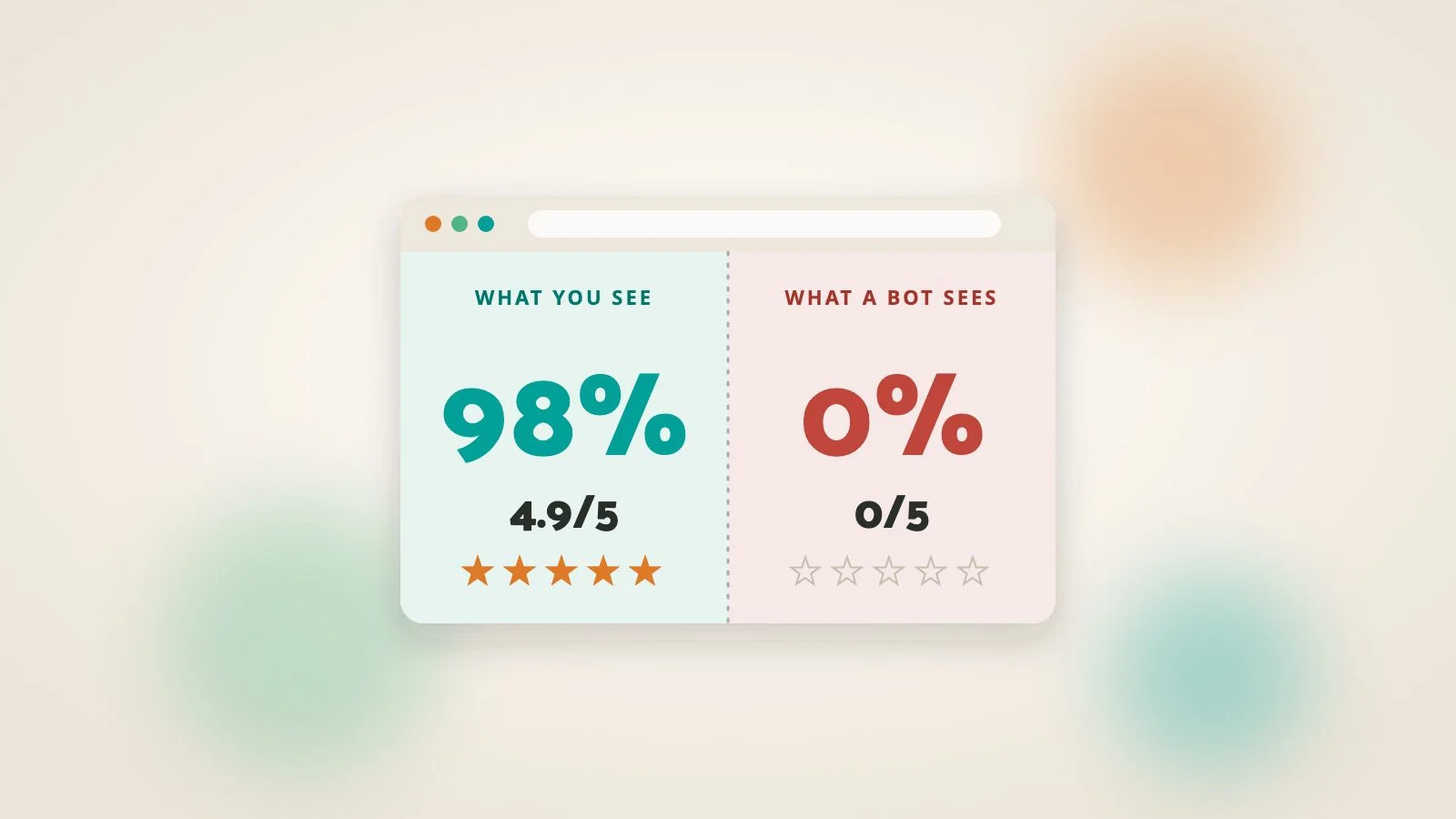
What can AI bots actually read on my site?
Whatever your server sends back when they ask for a page. That’s the HTML, the raw text sitting underneath the design. If a word, heading, link or number is in that HTML, a bot can read it. If it only turns up once a script has run, some bots will never see it.
That’s where a lot of small business sites get caught out. Your browser runs every script before it shows you anything, so the page looks fine to you. A bot that skips the scripts gets the unfinished version.
You’ve probably heard of llms.txt too, a file that lists your key pages for AI tools. It’s optional and it comes later. We’ll get to it further down.
The site where every statistic said zero
A client of ours has a row of headline figures on the homepage and several other pages: a client retention percentage and a star rating. The kind of numbers that make a visitor trust you. They animate, too. You land on the page and they count up from nothing to the real figure.
The client sent us a report from an AI audit tool. It flagged that the counters were being read as “0%” and “0/5”. We checked the live site, and sure enough, the audit was right.
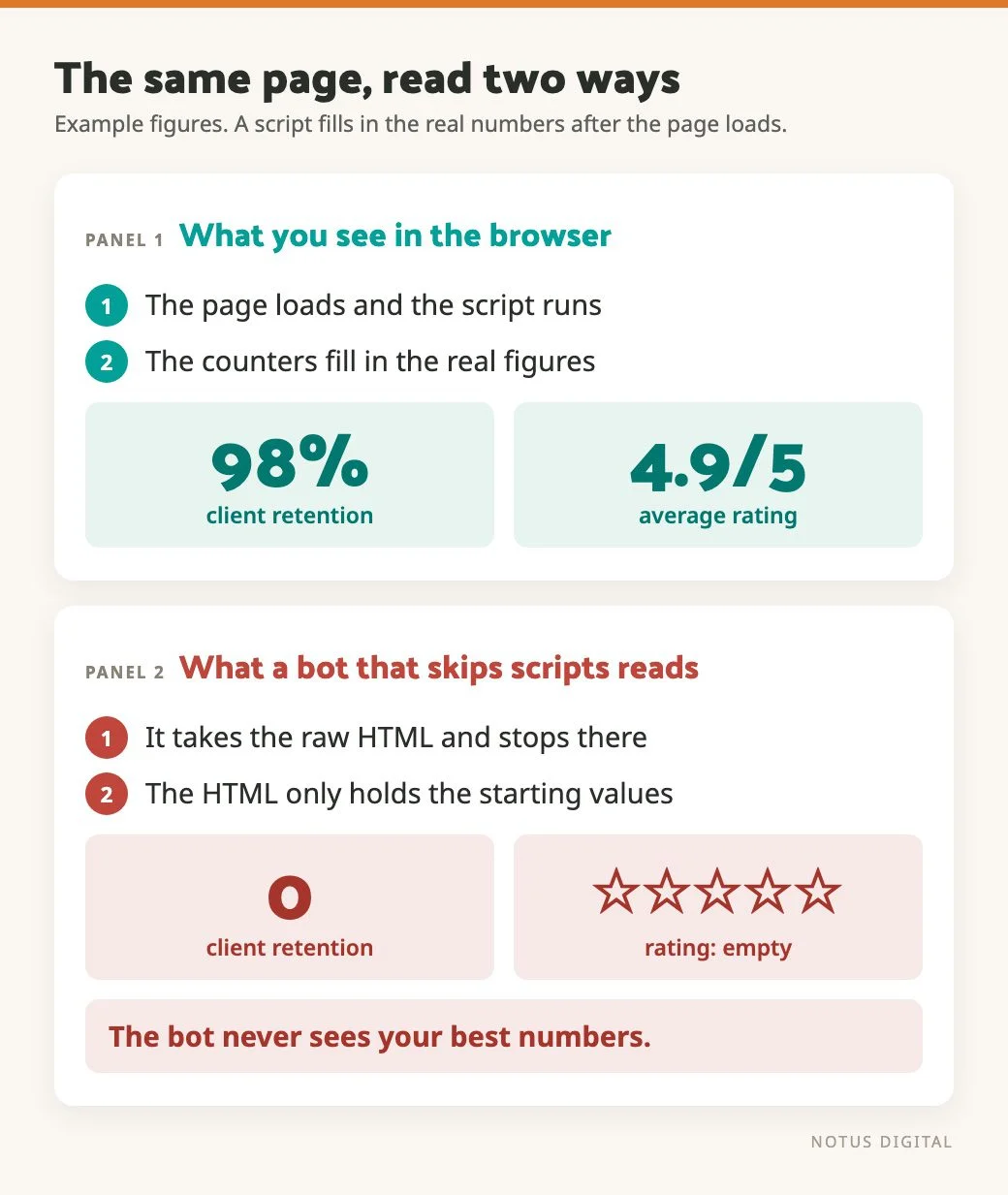
The HTML held a zero and a script swapped in the real number. Visitors never saw the zero. A bot that skips scripts saw nothing else, so as far as it could tell, the business kept none of its clients and scored nothing out of five. Not quite the impression anyone is going for.
Something like this, with made-up figures for the example:
What you see in the browser:  98%   4.9/5
What a bot reads in the HTML:  0%    0/5
The fix was to put the real figure in the HTML and have the script reset it to zero only at the moment the count-up is about to run. Visitors still see the count-up, and anything that skips the script now reads the real number.
What else the audit turned up
The same audit found three other problems. These are easier to miss, because nothing on the page looks wrong.
Leftover WordPress placeholder text. The homepage content field still held the default WordPress sample page text. The theme never displayed it, so nobody had noticed. But the site’s SEO plugin builds its llms.txt file from page content when there’s no excerpt, so WordPress’s sample text was quietly sitting behind the homepage entry. We cleared it out and set a proper excerpt.
Contradicting facts. The contact page’s meta description described where the business works differently from the rest of the site. Most visitors would skim straight past that. A bot reads both pages and comes away with two answers to the same question.
A testimonial credited to the wrong place. A genuine customer quote, attributed to somewhere that wasn’t quite right. Small, but a bot has no way of telling.
We fixed all four.
Are the bots allowed in at all?
Before any of that matters, a bot has to be allowed to ask for the page in the first place.
Your robots.txt file is the first place to look. Open yourdomain.co.uk/robots.txt in a browser. If there’s a line blocking a named AI crawler, somebody decided that, even if it wasn’t you. It may well be deliberate. Just check it is.
Don’t fancy reading it line by line? Backlinko has a free robots.txt AI crawler checker. Type in your site and it tells you which search and AI bots your file lets in and which it turns away. You get three free checks a day.
The less obvious blocker is the server. On a site we look after, we’ve seen AI crawlers turned away by a hosting provider’s bad-bot list while robots.txt was perfectly clean. Nothing in WordPress or the SEO plugin showed a problem, because the refusal happened before the request ever reached the site. The only way we found it was by testing how the server answers those crawlers directly. The fix was a setting at hosting level, and nothing on the website itself needed changing.
If you’ve asked your developer “are we blocking AI bots?” and the answer was “no, robots.txt is fine”, that answer may be incomplete. Ask them to check the server and any security layer in front of the site as well.
How to check what a bot sees on your own site
You don’t need special tools for the first pass. The wider checks sit in our guide to technical SEO basics for small business sites.
- Open one of your key pages in your browser. Right-click and choose “View page source”. This is the raw HTML, before any script has run.
- Use the search box in that source view (Ctrl+F or Cmd+F) to look for a fact that matters. A price, a phone number, a headline figure, a service area.
- Compare it with what you see on the normal page. If a number looks right on screen but is missing, or shows as 0, in the source, a bot that skips JavaScript will miss it too.
- Read your homepage, your contact page and your about page one after the other. Do the service areas, services and claims agree?
- Look at your homepage content in the WordPress editor. Is there stray default text in there that your theme doesn’t display?
Where does llms.txt fit in?
llms.txt is a plain text file at the root of your site, a short guide that lists your key pages for AI tools. Some SEO plugins can generate one for you. The one on the site above did.
If your plugin makes one for you, it’s worth switching on. We just wouldn’t start there. Have a look at the file itself, because it’s built from your own pages. In the case above, the file was only as good as the content behind it, and that content included placeholder text. A tidy llms.txt sitting on top of a page that says zero, or says two different things, helps nobody.
We wouldn’t expect it to move your rankings. Fix the page first.
What to fix first
In this order:
- Check that AI crawlers are allowed in, at robots.txt and at server level.
- Any figure, price or fact that is filled in by a script. Get the real value into the HTML.
- Leftover placeholder text, in the editor or in meta fields.
- Contradictions between pages, in meta descriptions, service areas and testimonials.
- llms.txt, if you haven’t done it yet and the plugin does it for you.
Then recheck every few months. Themes and plugins get updated, and new pages get added by people who’ve never heard of the counter problem.
When to ask a developer
You can do the page source check and the contradictions check yourself. Ask a developer when:
- A figure is missing or shows as 0 in the page source. That’s a template or script change.
- You think crawlers are blocked and robots.txt looks fine. That needs someone with access to the server or its security settings.
- You can’t find where a stray piece of text is coming from.
If you’d like a second pair of eyes on how your site reads to search engines and AI tools, we can run this check for you. For the wider picture, see how to get your business recommended by AI search and how to write content AI assistants will quote.
Questions about AI bots and your website
Some do and some don’t, and that changes over time. What we know first-hand is that at least one audit tool read a page without the script-filled values, and showed zero. So put the important facts in the HTML rather than relying on a script.
It’s a plain text file that lists your key pages for AI tools to read. Some SEO plugins generate it for you. We wouldn’t expect it to change your Google rankings, and its value for AI tools depends on the quality of the pages it points to. Treat it as optional.
Start with your robots.txt, and ask your developer to check for server-level blocks. Then view the page source in your browser, which shows the raw HTML before scripts run. Search it for the facts that matter to you and compare it with the page on screen.
Not by being there. The risk comes when the content inside them only exists after a script runs. A counter that starts at 0 in the HTML tells a bot the number is 0. Put the real figure in the HTML and let the script animate from it. Sliders carry the same risk for any text that only loads after the script.
After a theme or plugin update or a redesign, and whenever someone adds stats, sliders or testimonials. Otherwise every few months. With the page source open, it’s a quick check.